
Download Zen Writer – Distraction‑Free Writing Tool for Windows, Mac, Android & iOS
Overview
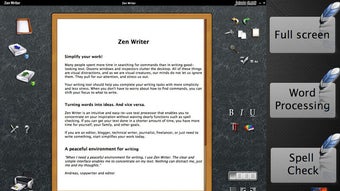
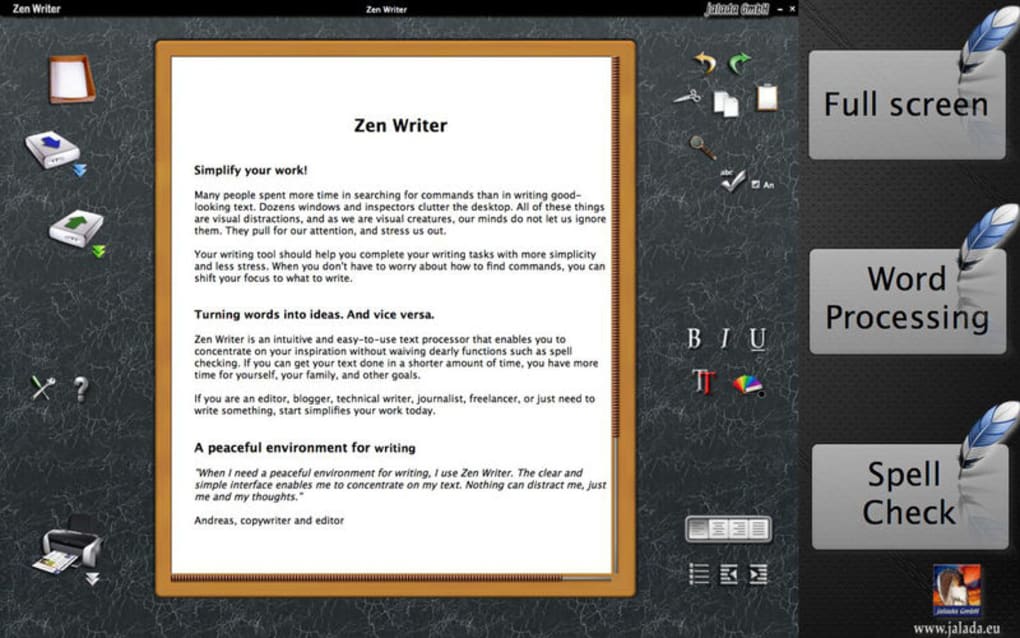
Zen Writer is a focused‑writing program built to strip away visual clutter while you craft fiction, articles, or any text‑heavy project. Unlike full‑screen blockers that suspend other applications, Zen Writer works by dimming peripheral windows and moving them to the background, allowing you to keep reference material—such as a web browser or research document—within reach without the constant temptation of bright icons and toolbars. The core philosophy is simple: create a calm, “zen” environment on your desktop so that the words can flow uninterrupted.
It targets writers who find themselves constantly pulled away by the chatter of modern operating systems, offering a lightweight yet powerful alternative to heavyweight word processors. While the Windows and Linux builds include advanced features like customizable opacity, quick‑toggle distraction layers, and theme‑aware backgrounds, the Mac version is more modest, resembling a stripped‑down word processor with fewer customization options. Nonetheless, the app remains free to download, regularly updated for security patches, and supports export to common formats such as .docx and .rtf.
Whether you’re a novelist battling writer’s block, a journalist polishing a deadline piece, or a student drafting essays, Zen Writer promises a clean canvas that respects your concentration while keeping essential tools just a click away.
Key Features that Make Zen Writer Stand Out
- Dynamic Background Dimming: Automatically fades out any open windows that are not the active writing pane, reducing visual noise without closing applications.
- Customizable Opacity Levels: Choose from light, medium, or deep focus modes to control how much of the surrounding desktop is visible.
- Split‑Screen Support: Keep a research browser or reference document on one side while the main writing area stays centered and uncluttered.
- Theme‑Aware Interface: Matches your system’s dark or light theme, ensuring a seamless visual experience across operating systems.
- Auto‑Save & Version History: Every keystroke is safely stored, and you can revert to previous versions with a single click.
- Export Flexibility: Save your manuscript directly as .docx, .rtf, .pdf, or plain text, ready for publishing or collaboration.
- Keyboard‑Centric Shortcuts: Full control via hotkeys, allowing you to toggle focus mode, open new documents, or switch themes without ever leaving the keyboard.
- Cross‑Platform Sync (Windows & Android): Optional cloud sync keeps your drafts consistent across desktop and mobile devices.
While the Mac edition lacks some of the more granular opacity controls, it still provides the essential background‑dimming feature and a clean, distraction‑free workspace. The developers continue to roll out updates that bring the Mac experience closer to parity with its Windows counterpart, focusing on stability and security enhancements. Overall, the feature set is designed to let writers stay in the “flow state” without sacrificing the convenience of having supporting documents nearby.
Installation, Usage & Compatibility
Step‑by‑Step Installation
- Visit the official Zen Writer website and click the Download button for your operating system (Windows, macOS, Android, or iOS).
- For Windows, run the
.exeinstaller and follow the on‑screen wizard. macOS users will receive a.dmgfile—open it and drag the Zen Writer icon into the Applications folder. - Android users can install directly from the Google Play Store, while iOS users download from the App Store.
- After installation, launch the application. The first run will prompt you to accept the privacy policy and enable optional cloud sync.
- Configure your preferred focus mode and opacity settings in the Preferences panel before you start writing.
How to Use Zen Writer Effectively
Once opened, Zen Writer presents a minimalist text editor centered on the screen. Any other open windows automatically shift to a faded background, preserving their state without interrupting your workflow. To bring a reference window back into focus, simply hover over it or use the Ctrl+Tab shortcut.
The Focus Toggle button (or F11 on Windows) lets you quickly switch between full‑screen distraction‑free mode and split‑screen mode, which is ideal for research‑heavy projects. The built‑in auto‑save runs in the background, so you never need to worry about losing work. When you’re ready to export, click the Export icon and select your desired format.
Operating System Compatibility
- Windows 10, 11 (64‑bit)
- macOS 10.14 Mojave and later (limited feature set)
- Linux distributions (deb & rpm packages)
- Android 8.0 Oreo and newer
- iOS 13 and newer
The Windows and Linux versions receive the most frequent updates, including new opacity controls and deeper integration with system themes. The macOS build, while stable, currently offers a more streamlined set of features, focusing on core distraction‑free writing without the extensive background‑dimming options found elsewhere. Mobile versions retain the essential focus mode, making it possible to write on the go without the clutter of notification bars.
Pros, Cons & Expert Review
Pros
- Effective background dimming keeps peripheral apps visible but non‑intrusive.
- Lightweight and fast; launches in seconds.
- Rich export options support professional publishing workflows.
- Keyboard‑first design minimizes mouse reliance.
- Free to download with optional paid cloud sync for cross‑device continuity.
Cons
- Mac version lacks advanced opacity sliders and some customization settings.
- No built‑in grammar or plagiarism checker.
- Does not block system notifications; users must mute them manually.
- Limited collaboration features compared with cloud‑based suites.
- Split‑screen mode can feel cramped on low‑resolution displays.
Zen Writer delivers on its promise of a calm writing environment without forcing you to close essential tools. The dynamic dimming engine works seamlessly on Windows, allowing novelists and journalists to keep research tabs open while maintaining focus. Although the Mac edition feels like a stripped‑down version, it still provides a solid distraction‑free canvas for writers who prefer Apple hardware. The free tier is generous, and the optional cloud sync is a nice upsell for power users. Overall, Zen Writer is a valuable addition to any writer’s toolkit, especially for those who value speed, simplicity, and the ability to keep reference material within reach.
Frequently Asked Questions (FAQ)
Is Zen Writer completely free or does it have a paid version?
Zen Writer is free to download and use for all core features. A paid subscription adds optional cloud sync across devices, priority support, and early access to beta features.
Can Zen Writer block system notifications while I write?
The app does not block OS notifications automatically. Users need to mute or enable “Do Not Disturb” manually if they want a completely silent environment.
Does Zen Writer support markdown formatting?
Yes, Zen Writer includes a built‑in markdown preview mode, allowing writers to see formatted text in real time while still benefiting from the distraction‑free layout.
Is my data safe when using the cloud sync feature?
All synced files are encrypted with TLS during transfer and stored on secure servers that comply with GDPR and CCPA standards.
Can I customize the background color or add a custom image?
Yes, the Preferences panel lets you choose between several preset colors or upload your own background image, which will be displayed behind the dimmed windows.
Conclusion & Call to Action
In a world where endless tabs and notification pop‑ups threaten to derail the creative process, Zen Writer offers a practical, lightweight solution that respects both your need for focus and the reality of modern research habits. While the Mac version could benefit from more feature parity, the overall experience across Windows, Linux, Android, and iOS is robust and reliable. Whether you’re drafting the next bestseller, polishing a news article, or simply journaling, Zen Writer helps you stay in the zone without sacrificing access to essential reference material. Download the free version today, explore the customizable focus settings, and consider the optional cloud sync if you write across multiple devices. Your words deserve a quiet canvas—let Zen Writer provide it.
Download Zen Writer now and start writing with less distraction and more clarity.







